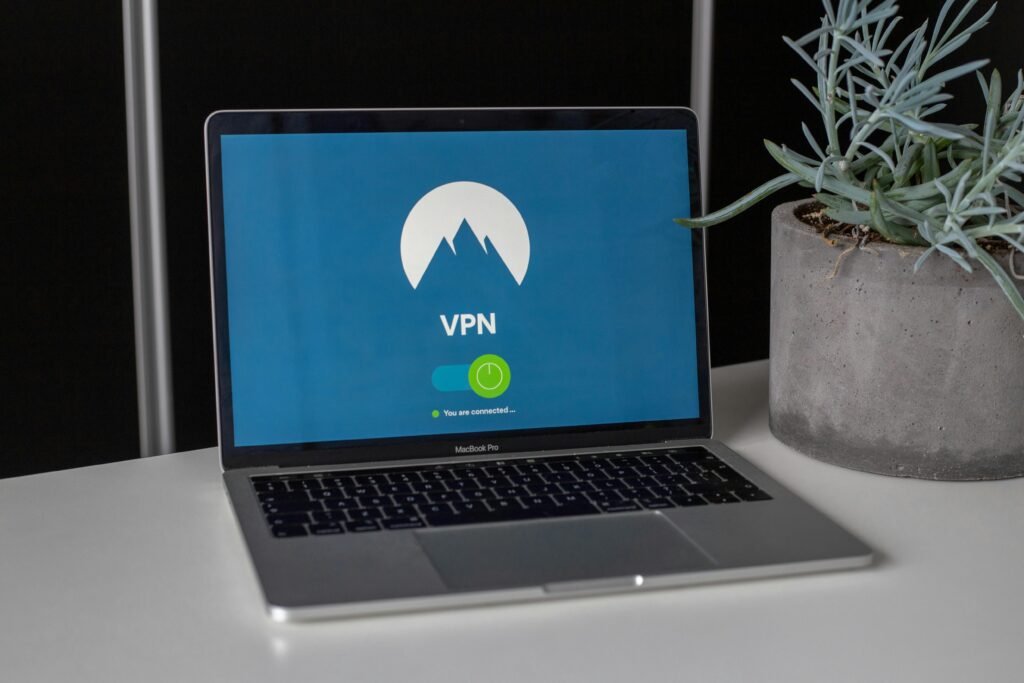
?Are you confident that your home workspace is protected against the most common digital and physical threats?

This image is property of images.pexels.com.
Work From Home Security Checklist
This checklist gives you a structured, friendly, and actionable approach to securing your remote work environment. You’ll find practical steps, configurations, and habits that you can implement right away to reduce risk and maintain productivity.
Why Work From Home Security Matters
Working from home changes the security boundaries you’re used to in an office, and that expands the types of risks you face. You need to manage not only device and network safety, but also the human and physical factors that can lead to data loss or unauthorized access.
How to Use This Checklist
You can follow the checklist item-by-item, or use the quick-check tables to assess and prioritize what to fix first. Use notes in the tables to track progress and assign deadlines if you share security responsibilities with family members or coworkers.
Core Principles to Follow
Security should be layered so that a single failure doesn’t expose everything you own or manage. Apply the basics: strong authentication, regular updates, least privilege, encryption, and routine backups.
Least Privilege and Account Segmentation
Grant access only to what’s necessary for each account or service, and use separate accounts for personal and work tasks. This reduces blast radius if one account is compromised and helps you manage permissions clearly.
Defense in Depth
Implement multiple safeguards—like antivirus, firewalls, and MFA—so that if one control fails, others still protect you. Layering controls also helps you respond more effectively when incidents occur.
Network and Router Security
Your home router is the gateway between your devices and the internet, and it needs careful configuration. Make your router a hardened entry point by updating firmware, changing defaults, and isolating IoT devices.
Change Default Credentials
Default usernames and passwords on routers and IoT devices are widely known and exploited by attackers. You should set unique, strong passwords on the router’s admin interface and any networked device.
Keep Router Firmware Updated
Router firmware updates often patch security vulnerabilities that could let attackers into your network. Check the manufacturer’s website regularly and enable automatic updates if available.
Use Strong Wi‑Fi Encryption
Use WPA3 where supported, or WPA2-AES if necessary, and avoid older protocols like WEP or WPA-TKIP. This ensures that eavesdropping or casual Wi‑Fi attacks are much harder to execute.
Set Up a Guest Network
Create a separate guest network for visitors and IoT devices so your work devices remain isolated. This limits exposure if a smart device or visitor’s device is compromised.
Disable Unnecessary Services
Turn off WPS, UPnP, and remote management unless you explicitly need them, as they often introduce vulnerabilities. Reducing exposed services limits potential attack vectors.
VPNs and Secure Remote Access
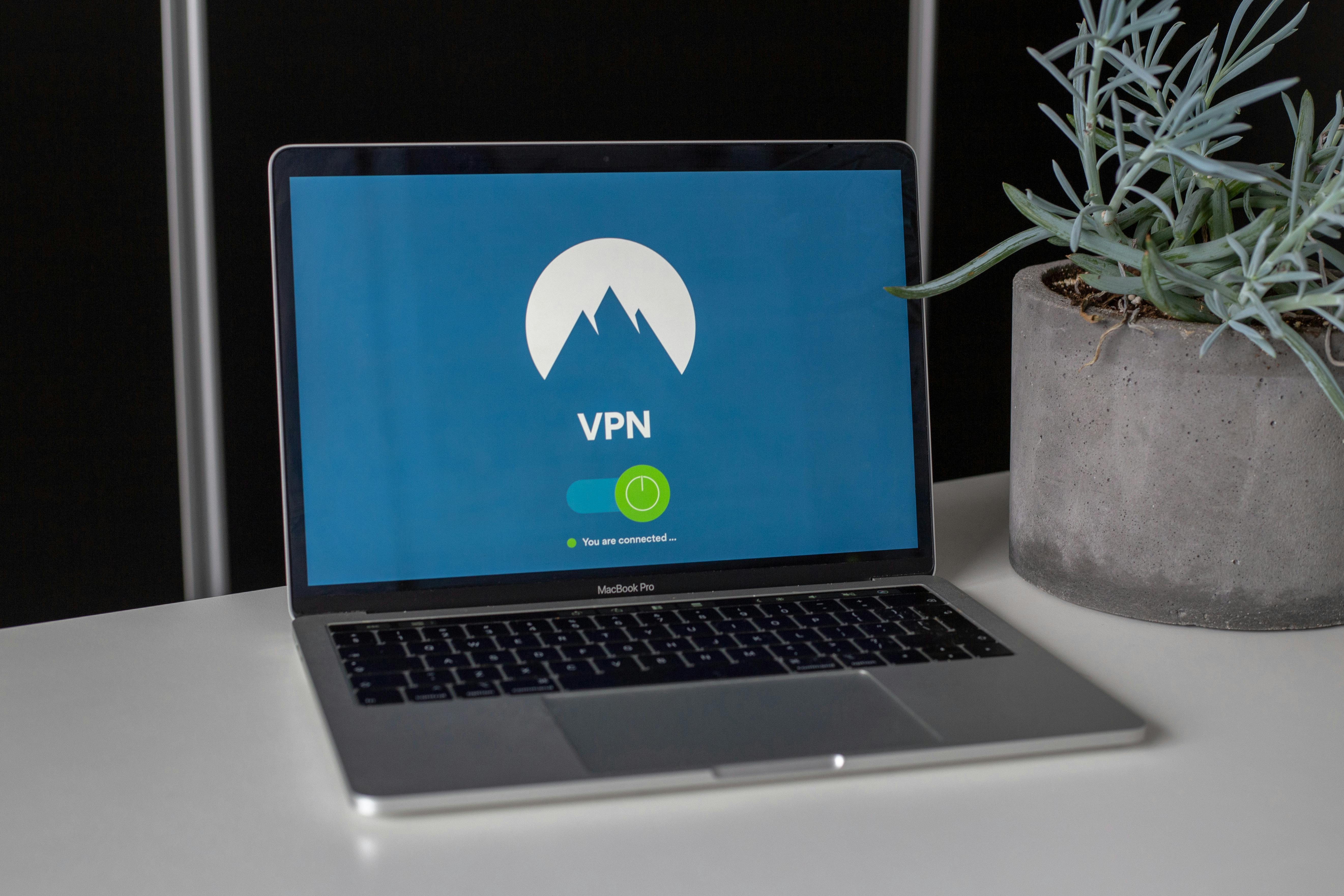
Use a reputable VPN when accessing company resources or public Wi‑Fi, and prefer company-provided VPN solutions if your employer supplies one. A VPN encrypts traffic between your device and the network you use, helping protect credentials and data.
Choose a Trusted VPN Provider
Select a VPN with a strong privacy policy, no-logs practices, and modern encryption standards like AES-256. Corporate VPNs or reputable consumer VPNs with transparent practices are preferable.
Use Split Tunneling Carefully
Split tunneling lets you route some traffic directly to the internet while other traffic goes through the VPN, but it can expose work traffic if misconfigured. Only use it when you understand the trade-offs and your employer allows it.
Device Security and Management
Protect each device you use for work—laptops, desktops, tablets, and phones—with up-to-date security software and configuration. Device-level protection reduces the risk of malware and unauthorized access.
Keep Operating Systems Updated
Install OS updates promptly because they often include security patches for known vulnerabilities. Enable automatic updates where possible to avoid delays.
Use Endpoint Protection
Run reputable antivirus and anti-malware tools and configure them for real-time scanning. Endpoint protection helps detect and remove threats you might encounter through attachments or downloads.
Configure Device Encryption
Encrypt your device storage (FileVault on macOS, BitLocker on Windows, or native encryption on mobile devices) to protect data if your device is lost or stolen. Encryption makes it much harder for attackers to read your files.
Enable Secure Boot and BIOS/UEFI Passwords
Secure boot helps ensure only trusted software runs when your device starts, and a BIOS/UEFI password prevents some physical attacks. These controls raise the difficulty of tampering with your device.
Remove Unnecessary Software
Uninstall apps and services you don’t use to reduce the attack surface and minimize update workload. Fewer applications means fewer potential vulnerabilities to exploit.
Passwords and Authentication
Strong passwords and multi-factor authentication are foundational to protecting accounts and systems. Using unique passwords and MFA dramatically reduces the chance that a breached credential will lead to account takeover.
Use a Password Manager
A password manager helps you create and store complex, unique passwords for every account, and it simplifies login processes. Choose a well-known manager with strong encryption and a good reputation.
Implement Multi-Factor Authentication (MFA)
Enable MFA on all accounts that support it, especially email, cloud storage, and corporate systems. MFA adds a second barrier—like a code or hardware token—so attackers need more than a stolen password.
Prefer Authenticator Apps or Hardware Keys
Authenticator apps (TOTP) or hardware security keys (FIDO2/WebAuthn) are more secure than SMS-based codes, which can be intercepted. Use the strongest available second factor for important accounts.
Email and Phishing Defenses
Email is a top vector for attacks because attackers can trick you into clicking malicious links or sharing credentials. Building habits and using technical defenses will keep malicious messages from causing damage.
Learn to Spot Phishing
Look for misspellings, unusual sender addresses, pressure tactics, and unexpected attachments or links. When in doubt, verify by contacting the sender through a known channel.
Use Email Security Features
Use built-in email spam filters, link scanning, and attachment sandboxing if available through your provider. These features help block or flag suspicious messages before they reach you.
Avoid Clicking Unknown Links or Attachments
Don’t open attachments or click links from unknown or unexpected emails; instead, verify first. Even seemingly legitimate messages can be forged or compromised.
Cloud Storage and File Sharing
When you use cloud services, configure sharing settings carefully and track access to sensitive files. Secure cloud use prevents unwanted disclosure and unintended edits or deletions.
Use Strong Access Controls
Set files and folders to the least permissive sharing level required and review sharing permissions regularly. Use expiration links for temporary access and revoke permissions when no longer needed.
Enable Activity Monitoring and Alerts
Turn on activity logs or notifications where available so you can spot unusual access, downloads, or sharing. Early detection helps you respond quickly to potential breaches.
Encrypt Sensitive Files
Encrypt local copies of highly sensitive files before uploading when possible, and use services that offer end-to-end encryption for critical data. Encryption ensures that even if the file is accessed, its contents remain protected.
This image is property of images.pexels.com.
Backup and Recovery
Regular backups are essential so you can recover quickly from ransomware, hardware failures, or accidental deletion. Implement redundancy and test restores frequently to ensure backups work.
Follow the 3-2-1 Backup Rule
Keep at least three copies of important data, on two different media types, with one copy stored offsite or in the cloud. This strategy reduces the risk of total data loss.
Automate Backups
Automate backups to avoid human error and ensure consistent protection. Verify backup logs and run occasional test restores to confirm integrity.
Maintain an Incident Recovery Plan
Document steps to take during an incident—who to contact, how to isolate systems, and how to restore from backups. A clear plan reduces downtime and stress during a breach.
Secure Collaboration Tools
Video conferencing and team collaboration tools are vital, but improper settings can expose meetings or shared content. Configure tools for privacy and teach household members to respect meeting security.
Use Meeting Controls
Require meeting passwords or waiting rooms, limit screen sharing to hosts, and lock meetings when they’re underway to prevent uninvited participants. These settings reduce the chance of interruptions or leaks.
Keep Collaboration Apps Updated
Update conferencing and collaboration apps promptly to get security fixes and feature improvements. Outdated clients may contain vulnerabilities attackers can exploit.
Restrict Recording and File Access
Limit who can record meetings and who can access shared files, and notify participants when recordings occur. Controlling recordings prevents accidental distribution of sensitive information.
Mobile Device Security
Phones and tablets are often used for work and can be gateways to corporate systems. Secure them with the same care you give laptops and desktops.
Use Device PINs and Biometric Locks
Lock devices with strong PINs, patterns, or biometric authentication to stop casual access. Automatic lock after short inactivity helps reduce risk if you step away.
Control App Permissions
Review and limit app permissions, particularly for microphone, camera, contacts, and location access. Many apps request more access than they need, so you should deny unnecessary permissions.
Enable Remote Wipe and Find Features
Set up remote locate and wipe capabilities so you can clear data from a lost or stolen device. This is crucial if the device contains sensitive company information.
Internet of Things (IoT) and Smart Home Devices
Smart devices can be convenient but often lack robust security, and they may provide an entry point to your network. Isolate and secure IoT devices to minimize risk.
Place IoT Devices on a Separate Network
Put IoT devices on your guest or separate VLAN so that a compromise doesn’t let attackers reach work devices. Network segmentation limits lateral movement.
Change Device Default Settings
Change default passwords and disable unnecessary features on IoT devices to reduce their attractiveness to attackers. Manufacturer defaults are commonly targeted in automated attacks.
Regularly Update IoT Firmware
Install firmware updates for smart devices to close vulnerabilities and improve stability. Many device vendors release important security patches with updates.
Physical Security and Workspace Setup
Physical protection of devices and documents is often overlooked but just as important as digital controls. Protect notebooks, prints, and devices from unauthorized access.
Secure Your Workspace
Lock doors or use privacy screens if you share your living space, and store sensitive documents in locked cabinets when not in use. Physical security prevents opportunistic data breaches.
Protect Against Shoulder Surfing
Be aware of onlookers when working in public or shared spaces, and use screen filters when necessary to reduce readability from an angle. Visual privacy is especially important when entering passwords or viewing sensitive material.
Securely Dispose of Old Devices and Documents
Wipe storage devices before disposal and shred paper documents that contain personal or work-related information. Proper disposal prevents data recovery by unauthorized parties.

This image is property of images.pexels.com.
Printing, Scanning, and Peripheral Security
Peripherals like printers and scanners often contain memory or network interfaces that can expose data. Manage their settings and physical access.
Change Printer Defaults and Use Secure Printing
Set strong admin credentials on networked printers and enable secure printing features that require authentication to release print jobs. This helps prevent sensitive documents from being printed and left unattended.
Keep Peripheral Firmware Updated
Update firmware on printers, scanners, and NAS devices to patch vulnerabilities. These devices aren’t immune to attacks and often get overlooked.
Use Wired Connections Where Practical
When possible, use wired connections for high-volume or sensitive printing to reduce interception risk over Wi‑Fi. Wired connections can also be more stable and faster for large file transfers.
Monitoring, Logging, and Alerts
Keeping an eye on account activity and device alerts helps you catch issues early and respond before they escalate. Configure alerts and review logs on a regular cadence.
Enable Account Activity Notifications
Turn on alerts for sign-ins from new locations, device additions, and unusual activity for your primary accounts. These notifications give you an early warning about compromise.
Keep Local and Cloud Logs
Where available, enable and retain logs for device and account activity, and review them periodically for anomalies. Logs are essential for post-incident investigation and prevention.
Use Centralized Monitoring Tools if Possible
If your employer provides device management or monitoring tools, enable them to simplify detection and remediation. Centralized tools can automatically enforce policies and provide faster responses.
Housemate and Family Security Awareness
Your household members can unintentionally create security gaps, so teaching them basic practices helps protect everyone. Simple rules and shared responsibilities reduce shared risk.
Share Simple Rules
Ask family members not to plug unknown USB sticks into work devices, not to join work meetings uninvited, and not to install software without permission. Clear rules prevent accidental security lapses.
Schedule Work and Home Device Boundaries
Define which devices are for work and which are for personal use, and avoid mixing sensitive work with casual browsing or gaming. Separate use makes security management simpler.
Offer Basic Training
Provide easy-to-follow guidance about phishing, password hygiene, and safe browsing to household members who may access your home network. A little knowledge goes a long way in preventing incidents.
Incident Response and Reporting
Knowing what to do when something goes wrong reduces damage and speeds recovery. Put a clear incident response plan in place and practice it occasionally.
Establish an Incident Response Plan
Document contact points (IT support, managers), containment steps (disconnect device, change passwords), and recovery steps (restore from backup). Having a written plan removes guesswork during stressful incidents.
Report Incidents Promptly
Tell your employer or IT helpdesk immediately if you suspect a compromise so they can take organization-level steps. Rapid reporting helps protect other employees and systems.
Keep an Incident Log
Record what happened, what you did, and any follow-up steps to help future response and continuous improvement. Documented lessons learned reduce repeat mistakes.
Compliance and Data Handling
If you handle regulated data, make sure you follow applicable policies and legal requirements when working from home. Compliance often requires specific controls, audits, and record-keeping.
Know Your Data Classification
Understand what data is sensitive and how it must be handled, labeled, and stored according to company policy or law. Classification guides how you protect and share information.
Follow Company Policies
Adhere to corporate rules for data access, device use, and remote connections, and ask for clarification when policies are unclear. Compliance helps you avoid legal and professional consequences.
Keep Audit Trails
Where required, retain records of access and sharing in accordance with compliance rules to prove proper handling. Audit trails can be crucial for investigations and regulatory requests.
Tools Comparison Table
This table helps you choose basic security tools by purpose, typical cost, and what to check before buying or installing. Use it to prioritize purchases and configuration choices.
| Purpose | Recommended Tool Type | What to Check |
|---|---|---|
| Password management | Password manager (cloud-synced, reputable vendor) | End-to-end encryption, zero-knowledge policy, multi-device sync |
| Remote access protection | Corporate VPN or trusted consumer VPN | No-logs policy, AES-256, modern protocols (WireGuard/OpenVPN) |
| Endpoint protection | Antivirus / EDR | Low false positives, behavioral detection, automatic updates |
| Backups | Cloud backup + local external drive | Encryption, versioning, restore testing procedures |
| MFA | Authenticator app / hardware key | FIDO2 support, backup codes, account recovery process |
| Collaboration | Secure video conferencing | Meeting lock/waiting room, encrypted streams, admin controls |
Quick Security Checklist Table
Use this compact table to do a rapid audit of your WFH setup and identify immediate gaps to address. Mark each item as Yes/No and add notes for follow-up.
| Item | Done? (Yes/No) | Notes / Action Needed |
|---|---|---|
| Router admin password changed | ||
| Router firmware updated | ||
| Guest Wi‑Fi for visitors/IoT | ||
| WPA3 or WPA2-AES active | ||
| Devices OS up to date | ||
| Disk encryption enabled | ||
| Password manager used | ||
| MFA enabled for key accounts | ||
| Regular backups in place | ||
| VPN configured for work | ||
| Email phishing awareness | ||
| Collaboration apps secured | ||
| IoT devices segmented | ||
| Incident plan documented |
Step-by-Step Setup Checklist
Follow these steps in order to create a secure baseline for your work-from-home environment. Completing these will significantly reduce your immediate exposure to common threats.
Step 1: Secure Your Network
Change router admin credentials, update firmware, enable strong Wi‑Fi encryption, and create a guest network for non-work devices. This establishes a safer network perimeter for your work devices.
Step 2: Harden Your Devices
Enable device encryption, apply OS updates, install endpoint protection, and remove unused software. These changes protect the device itself and the data stored on it.
Step 3: Lock Down Accounts
Set up a password manager, create unique passwords, and enable MFA for all critical accounts like email and cloud storage. This prevents credential reuse and significantly reduces account takeover risk.
Step 4: Implement Backups
Configure automated local and cloud backups, test restores, and keep an offline copy if possible. Reliable backups will get you back to work faster after any incident.
Step 5: Secure Collaboration and Peripherals
Configure meeting settings, secure printers, and limit file sharing permissions. Proper controls here avoid accidental leaks during routine communication.
Step 6: Educate and Document
Share basic rules with household members, document your incident response plan, and maintain a log of security activities. Knowledge and documentation make security measures more effective and repeatable.
Common Threats and How to Counter Them
Recognize the most likely threats to your remote work setup so you can prioritize defenses. Each threat has specific controls that reduce its effectiveness.
Phishing and Social Engineering
Phishing tries to trick you into giving up credentials or running malicious files, and practicing skepticism plus using MFA reduces success. Always verify unexpected requests through known channels.
Credential Stuffing and Reuse
Attackers use leaked credentials from one site to try other services, so unique passwords and MFA are your best defense. A password manager simplifies unique credential use across many services.
Malware and Ransomware
Malware can encrypt files or steal data, and antivirus plus backups are essential countermeasures. Avoid unknown attachments and untrusted downloads to lower infection risk.
Man-in-the-Middle Attacks
Public Wi‑Fi can expose your traffic, so use a VPN and prefer HTTPS connections to protect data in transit. Keep Wi‑Fi networks encrypted and be cautious when connecting in public spaces.
Maintenance and Ongoing Practices
Security isn’t a one-time setup; it’s ongoing maintenance, monitoring, and improvement. Schedule regular reviews and updates to keep pace with new threats and changes in your environment.
Schedule Regular Audits
Review your device inventory, installed applications, permissions, and backup integrity periodically. An audit helps you find overlooked issues before they become problems.
Keep Learning
Security tools and threats evolve, so keep informed about best practices and vendor advisories. Small, continuous learning keeps you ahead of common risks.
Review and Update Policies
Update your incident plan, account recovery options, and device lists whenever there are changes to personnel, roles, or technology. Accurate documentation speeds up response and ensures compliance.
Final Tips and Best Practices
Small habits compounded over time create a strong security posture, so be consistent and proactive. Use the checklist regularly and treat security as part of your everyday work routine, not an occasional task.
Automate Where Possible
Automate updates, backups, and monitoring to reduce human error and ensure timely protection. Automation frees you to focus on work while maintaining baseline security.
Balance Security and Usability
Apply controls that protect without making your work cumbersome, and adjust policies to fit your workflow. Good security supports productivity instead of hindering it.
Keep a Calm, Methodical Approach
When incidents happen, stay calm, follow your plan, and communicate clearly with relevant parties. A measured response preserves evidence and speeds recovery.
Resources and Further Reading
Use vendor documentation, reputable security blogs, and your organization’s IT policies to deepen your knowledge and get step-by-step configuration help. Reliable sources help you make informed choices about tools and practices.
Where to Get Help
If your organization provides IT support, contact them first for guidance, tools, and approved configurations. If you need third-party help, use certified professionals with strong reputations and verified credentials.
Useful Topics to Search
Look up device-specific encryption guides, router hardening instructions, password manager comparisons, and VPN protocol explanations. Targeted searches deliver practical configuration steps and example settings.
Closing Checklist — Actions to Take Today
Finish a small set of actions right away: change router admin password, enable OS updates, install a password manager, enable MFA on your email, and verify backups. Completing these immediate steps gives you a secure baseline to build on.
You now have a thorough Work From Home Security Checklist to apply immediately and maintain over time. Keep this guide handy, use the tables to track progress, and update your practices as your work environment changes.